
Home screen
Limited on the free planHome is the first thing you see when you open MoneyLoop. It answers one question — where is my money right now — with a card for each part of it. You can reorder the cards, hide the ones you don’t use, and hide the amounts themselves.
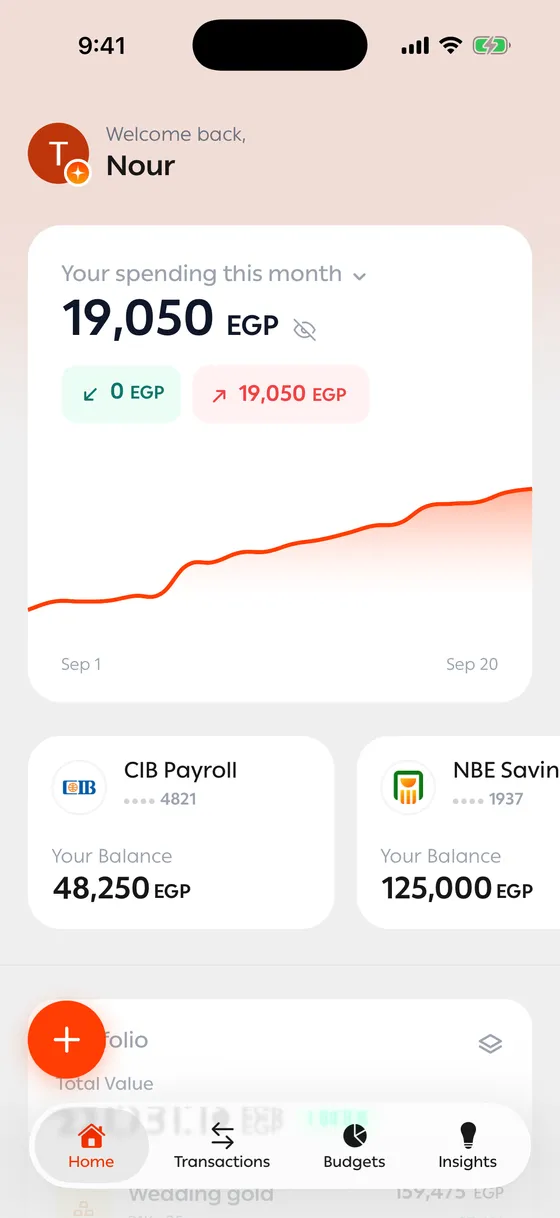
Spending
Section titled “Spending”The top card shows what you’ve spent over a period, with the same figure for the period before it, so you can see whether you’re above or below your usual.
Tap the period to switch between Last 7 days, This month and Last 30 days. The eye icon turns every amount on the screen into dots, which is useful when someone is looking over your shoulder. It stays off until you turn it back on.
Your accounts
Section titled “Your accounts”Each account is a card with its balance, in the order you added them. Slide across to reach the + card and add another account. If you turn on the total balance card, your combined balance sits first, before the individual accounts.
Spending by category
Section titled “Spending by category”A breakdown of the same period as the spending card. Tap a slice to see the transactions behind it.
Assets, recurring payments and debts
Section titled “Assets, recurring payments and debts”Three summary cards: what your gold, silver and stocks are worth, what’s due next, and what’s owed between you and other people. Each one opens its full screen.
Recent transactions
Section titled “Recent transactions”Your latest transactions, newest first. Tap one to open it, or View all for the full list with search and filters.
The buttons
Section titled “The buttons”- The bell opens your notifications.
- Your photo opens Settings.
- The + button adds a transaction. Hold it to record your voice instead of typing.
Arrange your home
Section titled “Arrange your home”- Scroll to the bottom of Home and tap Arrange home sections.
- Drag a section to move it, or switch it off to hide it.
- Turn Total balance card on to show your combined balance first.
- Set the Default spending period that every stat on Home is based on.
You can also reach this from Settings, under Preferences.
- If a card you never use is in your way, hide it. Nothing is deleted.
- The eye icon hides amounts everywhere in the app, not only on Home.
Common problems
Section titled “Common problems”A balance looks wrong — open the account and check it against your bank, then correct it there.
Some transactions are blurred — that’s the free plan’s history window.