
Importing your history
PremiumIf you have history in another app, or a statement from your bank, you can bring it into MoneyLoop instead of starting from nothing.
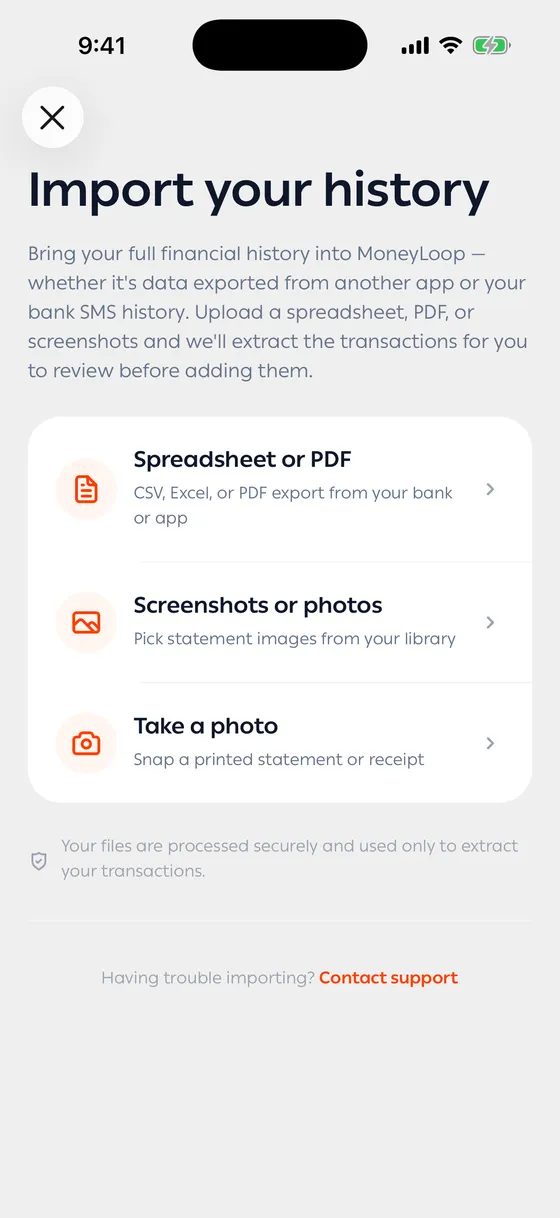
What you can import
Section titled “What you can import”| Source | What works |
|---|---|
| Spreadsheet or PDF | A file exported from your bank or another app |
| Screenshots or photos | Pictures of a statement |
| Take a photo | A printed statement or receipt |
The steps
Section titled “The steps”- Open Settings and tap Import your historical data.
- Choose your source, then pick the file or the images.
- Let it read. A card on Home shows how far along it is, and you can carry on using the app.
- When it’s done, the Review import screen opens.
The review
Section titled “The review”Nothing is added before you say so. On the review screen you’ll see:
- Accounts to be created — accounts in the file that you don’t have yet. Undo any of them and their transactions go to your General account instead.
- Every transaction with its amount and date. Remove any you don’t want.
- Anything that looks like a duplicate is removed for you, and the screen says how many.
- Anything the app isn’t sure about is marked Please double-check.
- Anything without a date is set to today, and tapping it lets you fix that.
Then tap the add button at the bottom.
- Start with one file and see how it comes out before importing years at once.
- A file exported from your bank is always cleaner than a photo. Use photos when there’s no file to be had.
- Very large files are cut off after the first stretch of transactions, and the review says so — split them into smaller files.
Common problems
Section titled “Common problems”No transactions found — the file probably has no clear table of transactions. Try another format or another file.
The import stopped — tap Try again on the card on Home.
Duplicates got added — delete them from your transactions, and read the list before adding next time.