
Automatic tracking on iPhone
Your bank texts you every time you spend. This connection sends that message straight to MoneyLoop, so the transaction records itself without you doing anything.
You set it up once, and it takes a few minutes.
Before you start
Section titled “Before you start”You’ll need the Shortcuts app — it’s already on your iPhone.
The steps
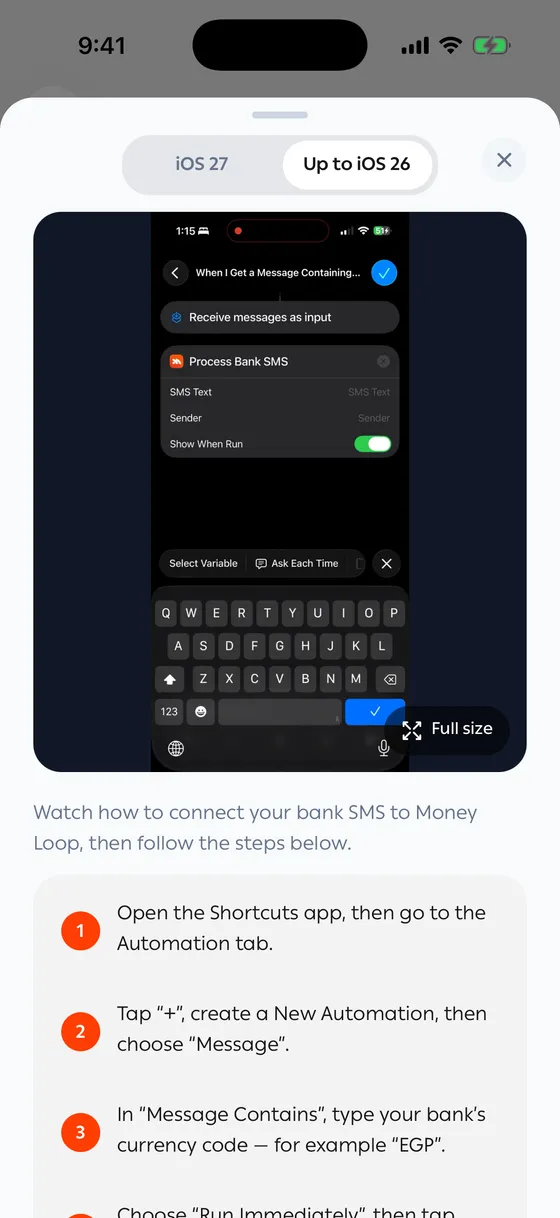
Section titled “The steps”In MoneyLoop, open Settings and tap the Activate the Shortcuts app card. It plays a video of the whole thing, with a version for each release of iOS. The steps are:
- Open the Shortcuts app and go to the Automation tab.
- Tap +, create a New Automation, and choose Message.
- In Message Contains, type your bank’s currency code.
- Choose Run Immediately, then tap Next.
- Tap Create New Shortcut, search for Money Loop, and add Process Bank SMS.
- Tap SMS Text and set it to Shortcut Input.
- Tap Sender, choose Shortcut Input, then tap it and pick Message → Sender. That’s what lets the app recognise your bank’s name and logo on its own.
- If the keyboard is open, close it first, then tap Done.
- Repeat for every currency code your banks use.
Checking that it works
Section titled “Checking that it works”Wait for your next message from the bank. The transaction should appear on Home within seconds.
If it doesn’t, go back to Shortcuts and check that the automation is there and that Run Immediately is on.
- Make one automation per currency code your bank writes — banks don’t always write it the same way.
- If your bank texts from several numbers, the automation still catches them all, as long as the message contains the code.
Common problems
Section titled “Common problems”Nothing is being recorded — usually Run Immediately is off, or the code you typed isn’t the one your bank uses.
A transaction came through wrong — you can edit it, or tell us about it from Reporting a wrong transaction.
Some messages shouldn’t be recorded — a work card, for instance. See Ignored cards.