
Arranging your home screen
Your home screen doesn’t have to look like anyone else’s. Arrange it around what you actually look at.
Opening it
Section titled “Opening it”- Scroll to the bottom of your home screen.
- Tap Arrange home sections.
It’s in Account as well.
Default spending period
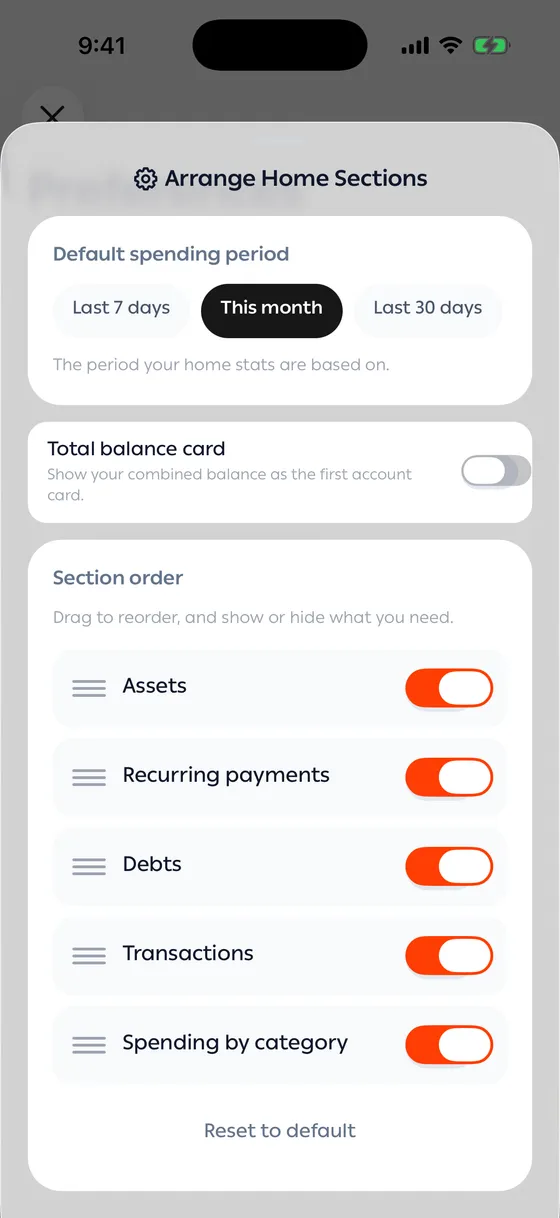
Section titled “Default spending period”The period your home figures are based on. Set it once and the whole screen follows.
Section order
Section titled “Section order”Drag any section up or down to move it, and switch off the ones you don’t need. The sections are: Spending, Accounts, Spending by category, Assets, Recurring payments, Debts, and Transactions.
Total balance card
Section titled “Total balance card”Its own switch puts your combined balance as the first account card. Turn it off if you’d rather see each account on its own.
Back to default
Section titled “Back to default”Reset to default returns everything to how it started. It deletes nothing.
- Hide the sections that are empty for you now, and switch them on when you start using them.
- Put the section you open the app for right at the top.
Common problems
Section titled “Common problems”A section isn’t on my home screen — check its switch here; a hidden section stays hidden until you switch it back on.
The order went back — saving needs a connection. Try again.