
Home screen widget
The widget shows your weekly spending right on your phone’s home screen.
Open it from Account → Add Home Screen Widget, where a short video shows the steps, with the steps written underneath.
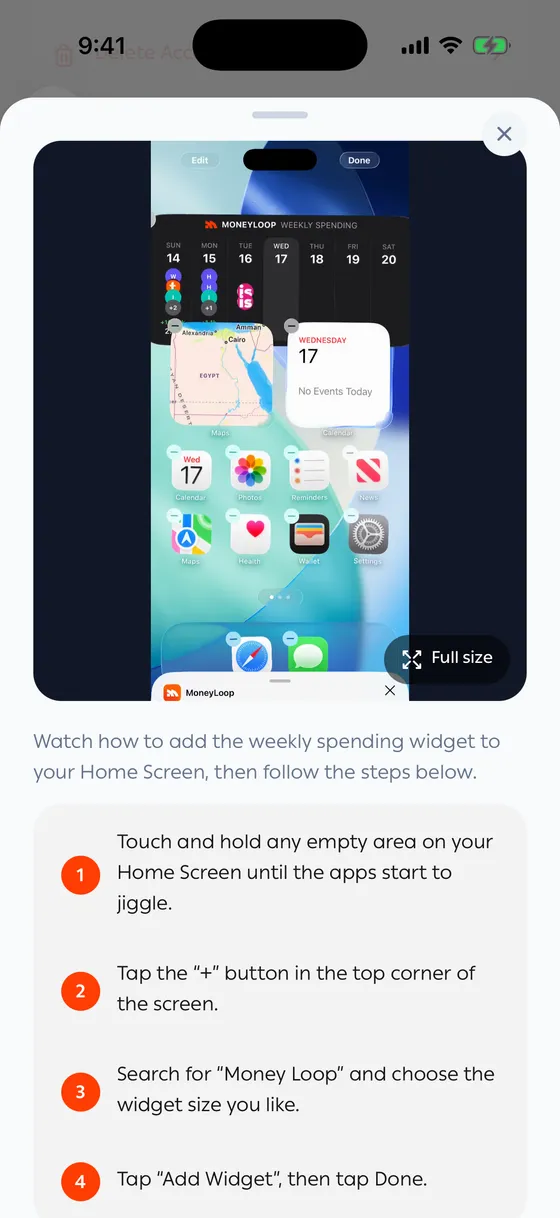
On iPhone
Section titled “On iPhone”- Touch and hold any empty area on your Home Screen until the apps start to jiggle.
- Tap the + button in the top corner of the screen.
- Search for Money Loop and choose the widget size you like.
- Tap Add Widget, then tap Done.
On Android
Section titled “On Android”- Touch and hold any empty area on your Home screen, then tap Widgets.
- Scroll down the widget list until you reach the Moneyloop section.
- Tap Weekly Spending to place it on your Home screen.
- Drag it wherever you like, then tap Done.
- Put the widget somewhere you pass, not on a far-off page. The whole value is seeing it without meaning to.
Common problems
Section titled “Common problems”I can’t find the app in the widget list — close the app and open it once, then look again.
The figure isn’t updating — open the app once and the widget follows.