
Adding stocks
Limited on the free planYou record a stock once, and its price updates itself with the market.
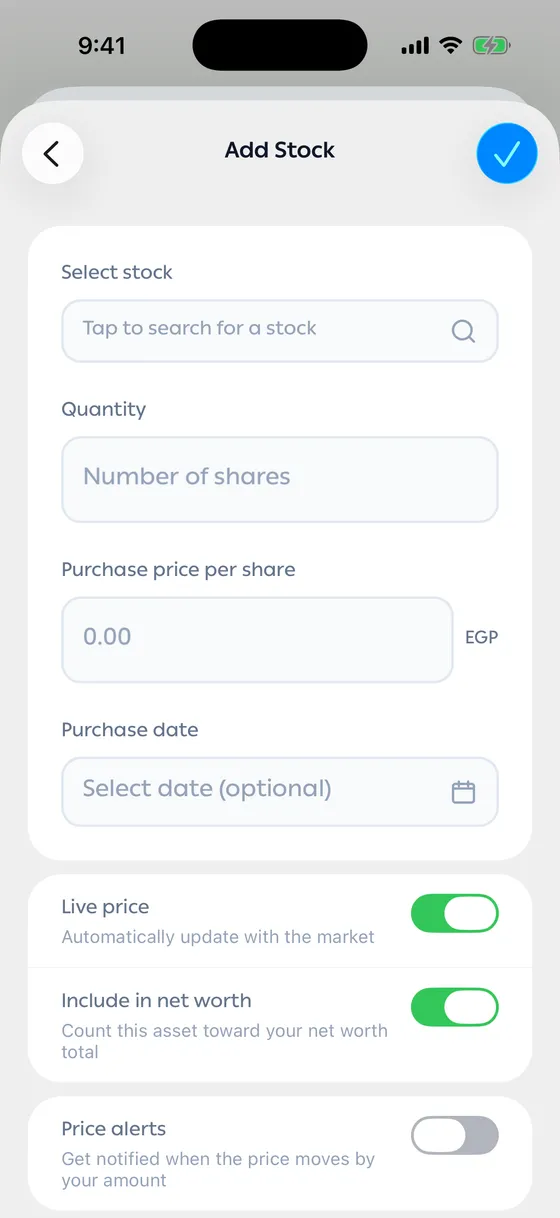
Adding
Section titled “Adding”- Open your portfolio, tap Add Asset and choose Stocks.
- Tap the search field and look it up by company name or ticker. Type at least two characters.
- Pick it from the results. The name fills itself in.
- Enter the Quantity.
- Enter the Purchase price per share.
- Save.
After you add it
Section titled “After you add it”The stock’s screen shows the current price, what your holding is worth, the gain or loss, and a chart over a week, a month, three months, six months or all of it.
If you bought in stages
Section titled “If you bought in stages”If you bought the same stock at different prices, you can record it more than once, or adjust the quantity and price to your average.
- Always use the search rather than typing a ticker, so you don’t end up with a different company that shares the letters.
- After selling, update the quantity straight away so your total stays right.
Common problems
Section titled “Common problems”The stock isn’t in the results — try the ticker instead of the name or the other way round, and make sure you’ve typed at least two characters.
No price is showing — the ticker isn’t right. Remove it and pick it from the search.