
Merchant rules
Some merchants don’t belong to one category. A supermarket where you buy food and household things at once — the app picks something, and you change it every time.
A rule ends that: choose the category once, and it’s applied on its own from then on, whatever the transaction came from.
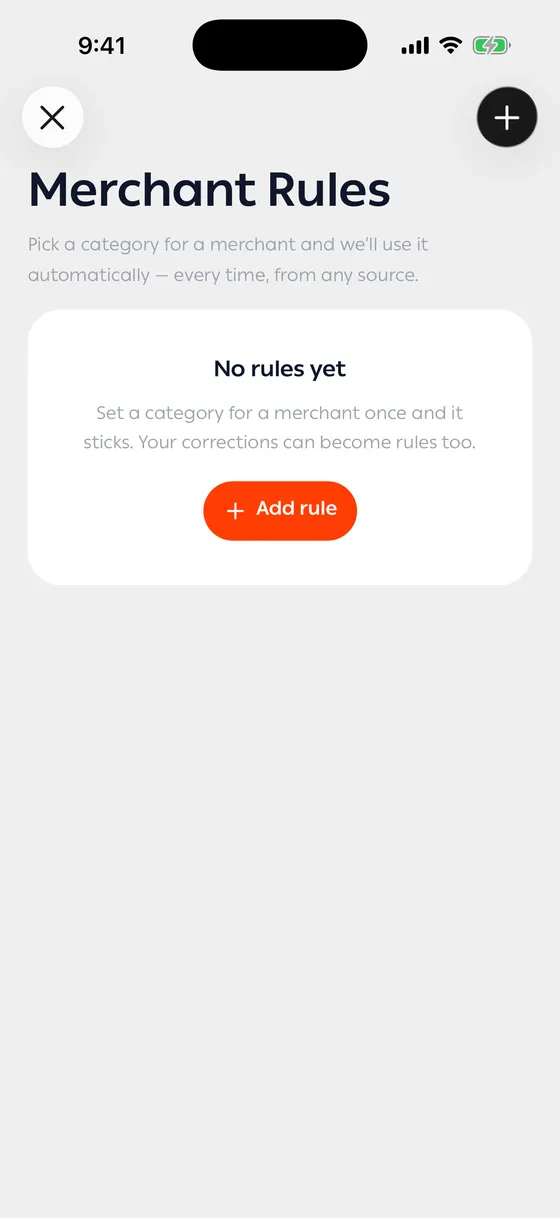
Adding a rule
Section titled “Adding a rule”- Open Settings and tap Merchant Rules.
- Tap Add rule.
- Enter the merchant’s name and choose the category.
- Save.
The two switches
Section titled “The two switches”- Only when the app is unsure — the rule applies only when the app can’t categorise confidently. Leave it off to have your category win every time.
- Apply to past transactions — re-files what you already have from that merchant. Off by default.
Rules from your own corrections
Section titled “Rules from your own corrections”When you change a transaction’s category, the app asks whether that should be a rule. Choose Always to create one, or Just this once if it’s an exception.
If you’ve fixed the same merchant more than once, it asks again — by then it’s clearly a pattern.
Deleting
Section titled “Deleting”Deleting a rule doesn’t change past transactions. What’s already categorised stays that way.
- Write the merchant’s name as it appears on your transactions, not its official name.
- For a merchant you buy different things from, Only when the app is unsure beats a fixed rule.
Common problems
Section titled “Common problems”The rule isn’t working — the name is probably slightly different from the one on your transactions. Open one and copy it exactly.
It changed transactions I didn’t want changed — Apply to past transactions was on. Fix them with a bulk edit from Bulk editing and export.