
Recurring income
Salary, overtime, profits — income that arrives on a fixed schedule shouldn’t need typing in every time.
Set it up once, pick when it comes, and the app adds it to your transactions each time it’s due.
Adding recurring income
Section titled “Adding recurring income”- Open Settings and, under Transactions, tap Recurring income.
- Tap + at the top (or Add my first recurring income if the list is empty).
- Enter the amount, name and account like any other income.
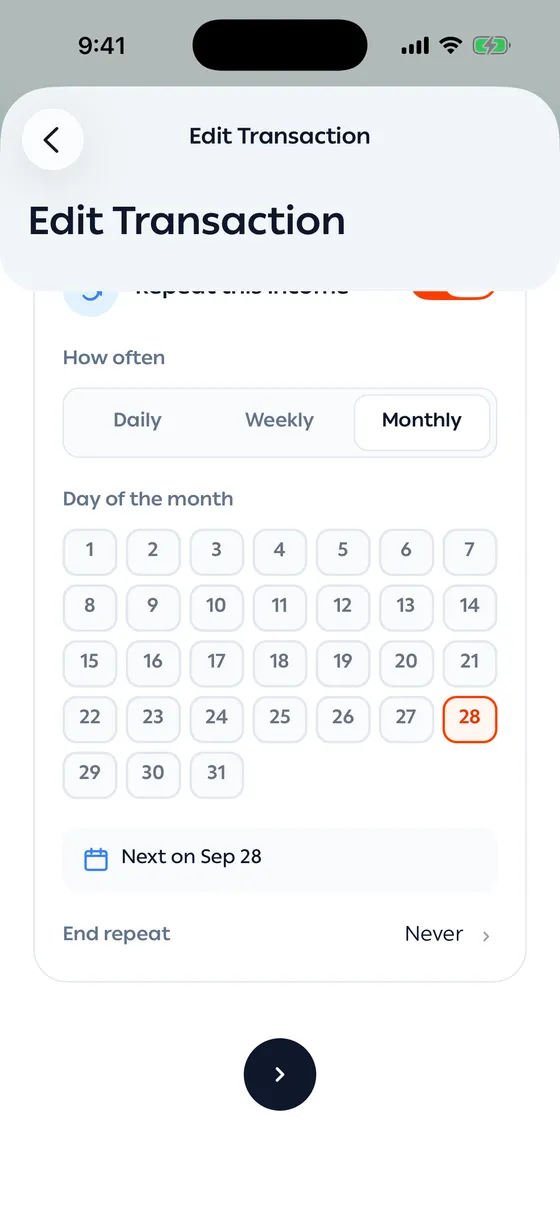
- On the Repeat this income card, choose How often: Daily, Weekly or Monthly.
- Pick the day, and set End repeat if it should stop.
- Save.
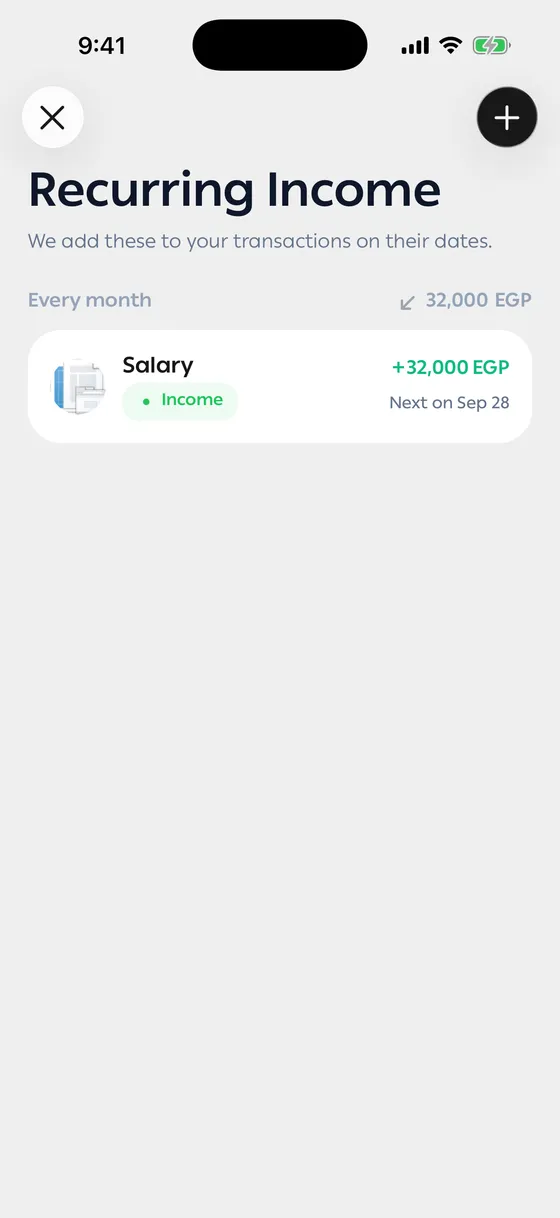
The card shows Next on — the next date it will be added.
You can turn on repeating anywhere you add income: switch on Repeat this income before you save.
Repeating income you already added
Section titled “Repeating income you already added”- Open the transaction and tap Edit Transaction.
- Turn on Repeat this income and choose when.
- Save.
How it’s added
Section titled “How it’s added”- It’s added on its day, starting from the next date — the day you set it up isn’t repeated.
- If you pick a day some months don’t have, like the 31st, it’s added on the last day of shorter months.
- Every income added this way shows in your transactions with the repeat mark next to its name, and its details say Added automatically on schedule.
Changing or stopping it
Section titled “Changing or stopping it”Open the transaction and tap Manage on the Repeats card. Or open the list from Recurring income and tap the income.
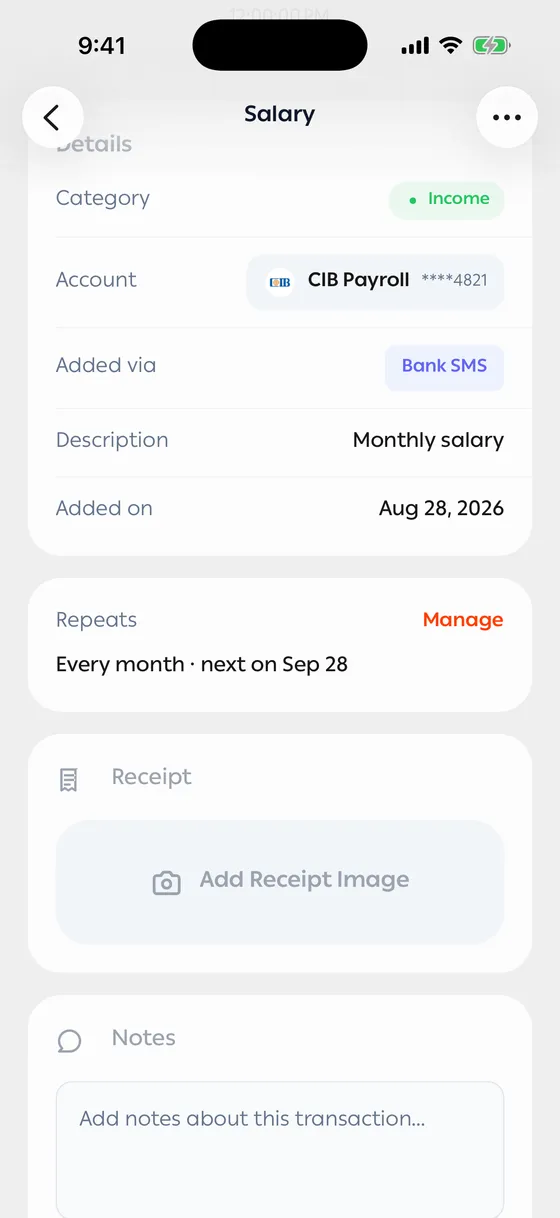
- Edit: change the amount or schedule. Changes apply to future income only.
- Pause, then Resume when you want it back.
- Delete repeat: it won’t be added again, and income it already added stays as it is.
You can also stop it from Edit Transaction: switch the repeat off and save.
Common problems
Section titled “Common problems”It wasn’t added today — in Recurring income, check it isn’t Paused and hasn’t ended.
It says its account was removed — tap it and pick another account; it’s added again from the next date.