
Adding a transaction
Limited on the free planMost of your transactions record themselves from your bank’s messages. What you add by hand is usually cash, or something no message came for.
The + button on Home and on the transactions screen opens the add screen.
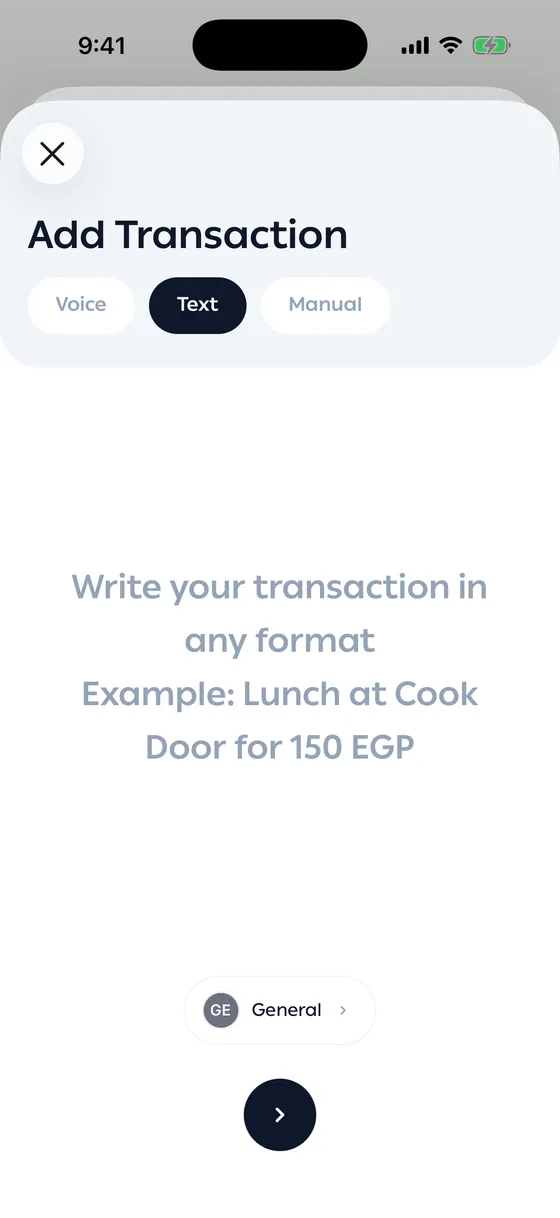
The three ways
Section titled “The three ways”By voice
Section titled “By voice”Hold + and say it out loud — “spent 150 on lunch at work”. Let go, and the app pulls out the amount, the merchant and the category for you to check before saving.
By typing
Section titled “By typing”Write the transaction however you like in one box and tap Detect. The app reads it and fills in the fields; you review them.
Manually
Section titled “Manually”Fill in the fields yourself: amount, type, category, merchant, account, date, and a note if you want one.
The fields
Section titled “The fields”| Field | Note |
|---|---|
| Amount | Required |
| Type | Expense, income or transfer |
| Category | Required. See Categories |
| Merchant | The app suggests ones you’ve used before |
| Account | Left empty, it goes to your primary account |
| Date | Today by default |
| Exclude from budget | Record it without it counting against your budgets |
Which one opens first
Section titled “Which one opens first”In Settings, under Preferences, Default view decides whether + opens on voice, text or manual. You can still switch at the top either way.
- Record cash as you spend it. It’s the biggest reason balances drift.
- With voice, say the amount and the place in one sentence — it’s more accurate than two fragments.
- Exclude from budget is for things that aren’t really your spending, like money you’ll be paid back.
Common problems
Section titled “Common problems”Voice doesn’t work — the app needs microphone permission in your phone’s settings.
Typing didn’t understand it — write it more plainly, or use Manual.
It went to the wrong account — open it and change the account, and set your primary account from Your accounts.