
Connected apps
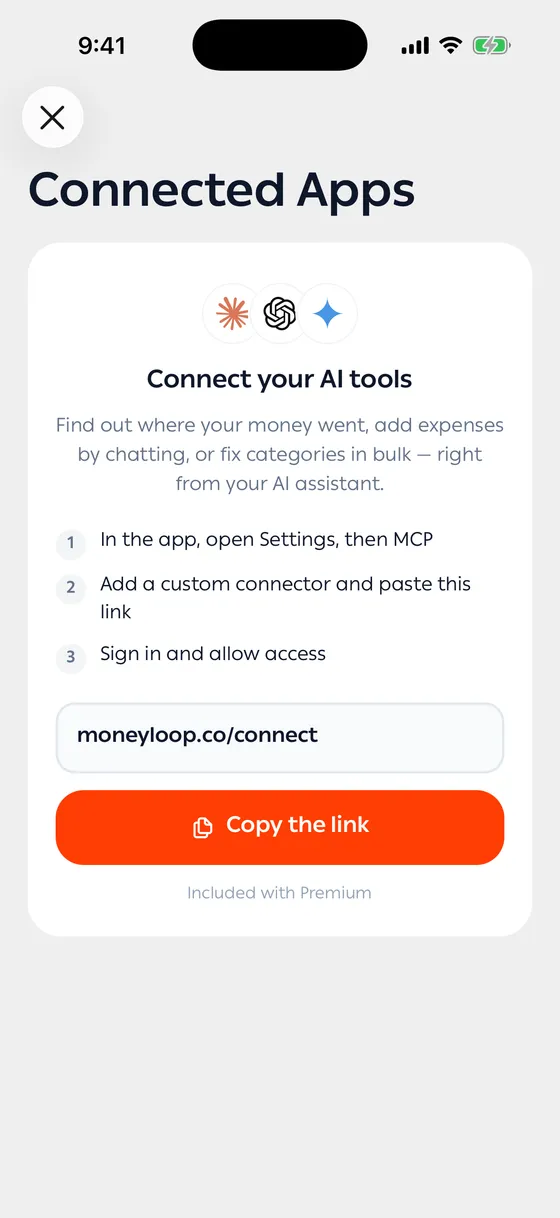
PremiumYou can connect the AI tools you already use to your account — find out where your money went, add expenses by chatting, or fix categories in bulk.
Connecting
Section titled “Connecting”- In Account, open MoneyLoop MCP.
- Tap Copy the link.
- In the other app, add a custom connector and paste the link.
- Sign in and allow access.
The link works with any app that supports MCP.
What you see once connected
Section titled “What you see once connected”Each connected app is listed with the date you connected it, when it was last used, and its access level: Can see your data or Can see and change your data.
Following the changes
Section titled “Following the changes”Changes made by your AI tools is a log of everything done from outside the app: a transaction added, an account edited, a budget deleted, and so on.
Disconnecting an app
Section titled “Disconnecting an app”Tap Disconnect next to it and confirm. It stops seeing and changing your data within a minute. You can connect it again any time.
- Connect one tool first and get a feel for it, rather than several at once.
- Look through the change log after any large piece of work your tool did.
Common problems
Section titled “Common problems”I can’t find the connected apps screen — it’s a Premium feature.
Disconnecting fails — it needs a connection. Try again.
The app won’t finish connecting — not every app that supports MCP can complete this connection yet. Try another one.