
Bulk editing and export
Limited on the free planWhen twenty transactions need the same correction — a category that came out wrong again and again, or the wrong account — you don’t have to open them one at a time.
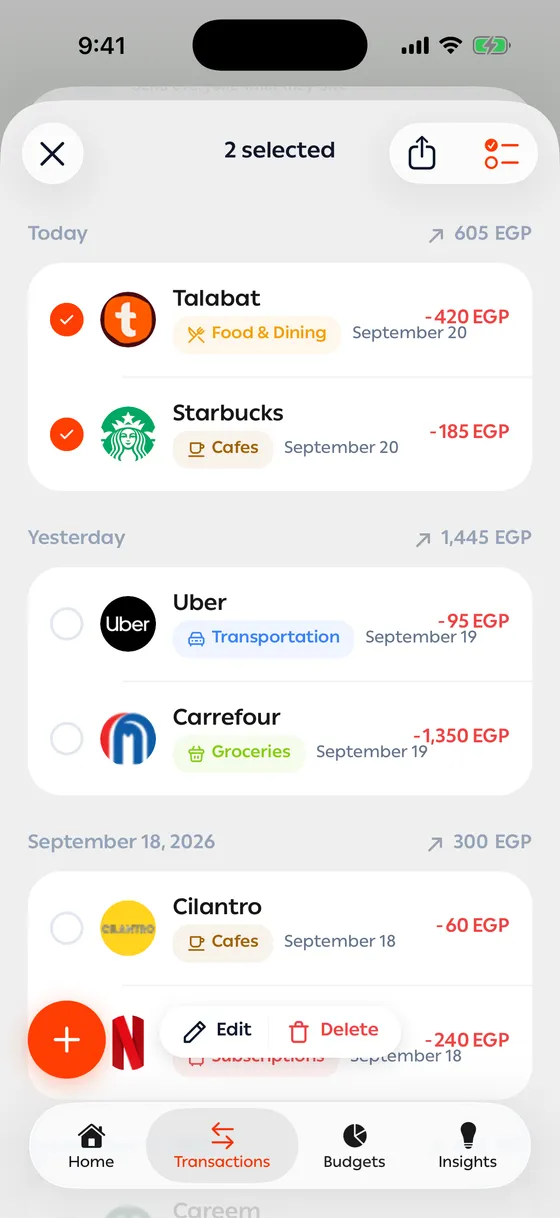
Selecting
Section titled “Selecting”- On the transactions screen, tap Select.
- Tap the ones you want. The count appears at the bottom.
- Or tap Select all for everything loaded, or Select all matching for everything that matches your current filters.
Filter first, then select — it’s far quicker.
Editing in bulk
Section titled “Editing in bulk”With a selection made, open the edit sheet and change what you need: category, type, account, merchant or tags.
Anything you leave alone stays as it is on each transaction. Tags have three modes: Add to all, Replace all and Remove from all.
Deleting in bulk
Section titled “Deleting in bulk”You can also delete a whole selection at once. That’s permanent, with no undo.
Exporting
Section titled “Exporting”From the same bar, Export CSV produces a file with the date, type, amount, currency, category, description, merchant, account, tags and notes.
If matching transactions haven’t been loaded yet, the app says it will export only the loaded ones and asks whether to go ahead.
- Filter by merchant, then select all — it’s the fastest way to fix a category that kept coming out wrong.
- If the same merchant is always miscategorised, make it a rule instead. See Merchant rules.
Common problems
Section titled “Common problems”The change didn’t apply to everything — there were transfers in the selection. They follow their own rules.
The export is missing rows — only loaded transactions were exported. Scroll until the rest load, then export again.