
Categories
Every transaction has a category, and your insights and budgets are all built on them.
Open Settings and tap Spending Categories to see the lot.
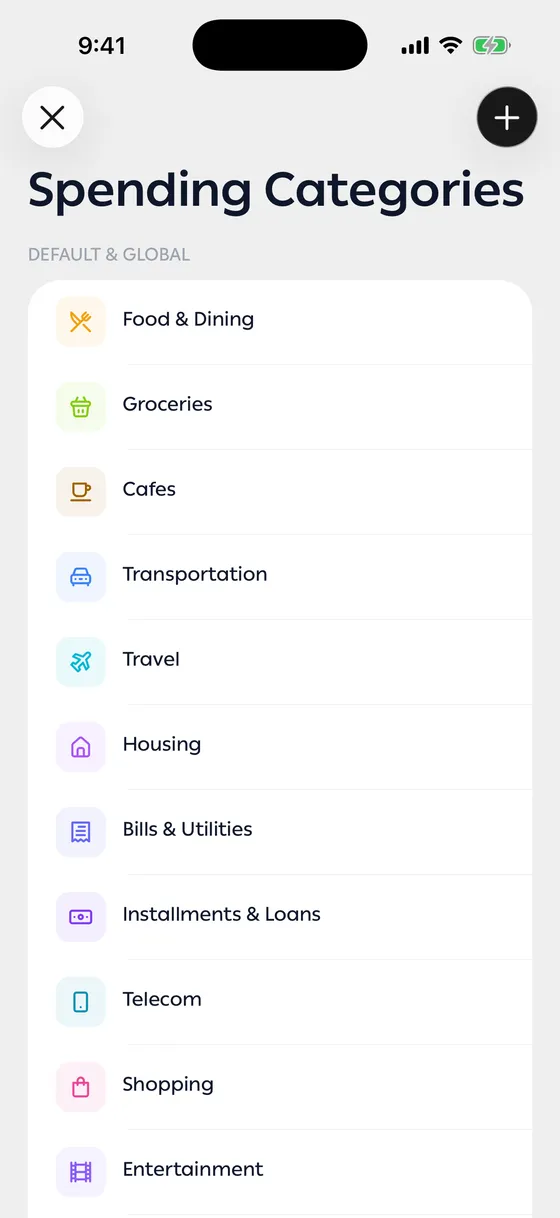
The built-in ones
Section titled “The built-in ones”The app comes with categories covering most of daily life. They can’t be edited or deleted — if you want your own version, make a new one with the name you prefer.
Making your own
Section titled “Making your own”- On the categories screen, tap Add Category.
- Give it a name, a colour and an icon.
- Optionally add Parsing hints — words or places that make the app file those transactions here on its own.
- Save.
Controlling where it appears
Section titled “Controlling where it appears”Each of your own categories has two switches:
- Hide from budgets — it won’t be offered when you create a budget.
- Hide from Home totals & charts — its transactions stay out of your income and spending totals and out of the charts on Home.
Deleting
Section titled “Deleting”Deleting one of your categories doesn’t delete its transactions. They stay, and you can file them elsewhere.
- Don’t make too many. The fewer you have, the more readable your breakdown is.
- Hints work best as place names or words that actually repeat in your bank’s messages.
Common problems
Section titled “Common problems”Transactions aren’t landing in my new category — give it hints, or make a merchant rule. See Merchant rules.
I can’t edit a category — it’s a built-in one. Make your own with the same meaning and the name you want.